Manual
About
ZL Splitter is a multifunctional audio splitter plugin with the following key features:
- Versatile Separation: Split audio into Left/Right, Mid/Side, Low/High, Transient/Steady, or Peak/Steady components, or run in pass-through mode.
- Crossover Precision: Low/High frequency splitting with de-cramped analog-matched IIR filters or linear-phase FIR filtering across 12, 24, and 48 dB/oct slopes.
- Dynamic & Spectral Separation: High-performance STFT median-filtering model for Transient/Steady separation and dynamic envelope follower for Peak/Steady separation.
- Intuitive Workflow: A carefully designed interface featuring an FFT spectrum analyzer with OCT and ERB smoothing, scrolling magnitude analyzer, and real-time waveform display.
The routing generally looks like the following:
flowchart LR
    A[Input] --> B(ZL Splitter)
    B --> C[Output 1] --> C1(Processing / FX) --> E[Full Signal]
    B --> D[Output 2] --> D1(Processing / FX) --> E
Top Panel


You can open the UI Setting Panel by clicking the logo.

You can open the Preset Manager Panel by clicking the icon.
Split Type
Selects the audio splitting mode from the dropdown menu:

None: Pass-through mode (Input to Output 1, silence to Output 2)
Left Right: Splits into Left (Output 1) and Right (Output 2) signals
Mid Side: Splits into Mid (Output 1) and Side (Output 2) signals
Low High: Splits into Low (Output 1) and High (Output 2) frequency bands
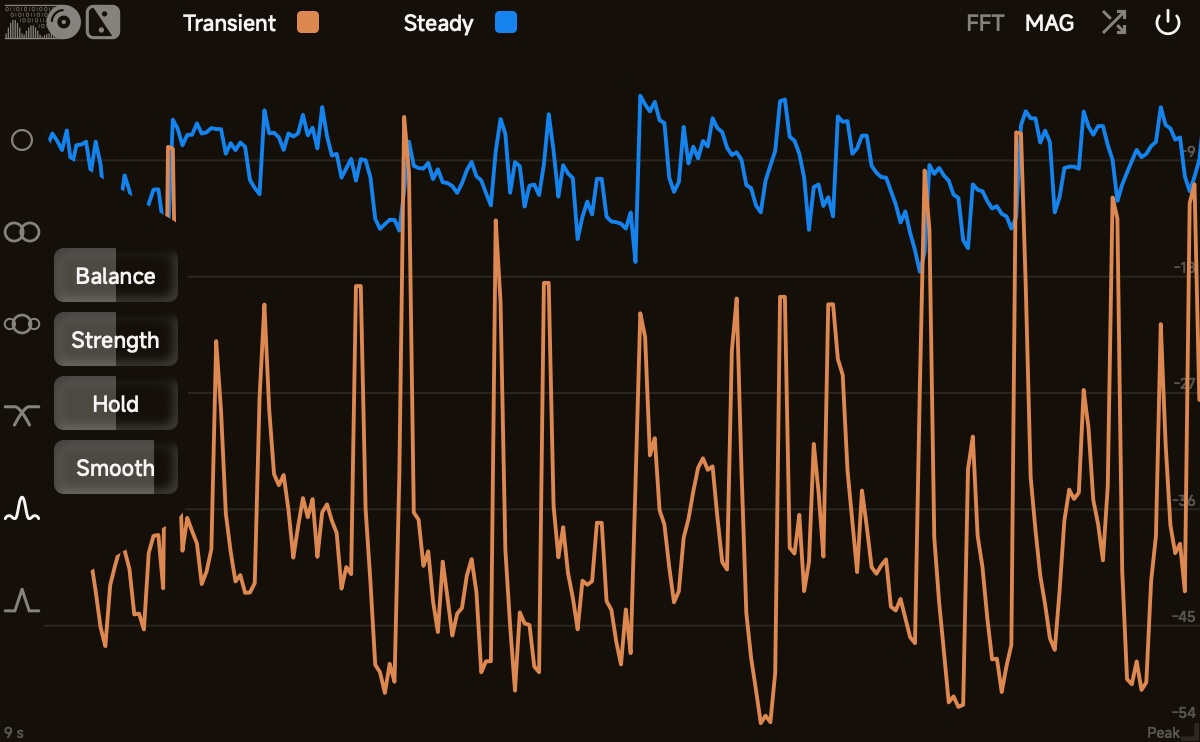
Transient Steady: Splits into Transient (Output 1) and Steady (Output 2) components
Peak Steady: Splits into Peak (Output 1) and Steady (Output 2) components
Parameter controls for the active split mode appear in the Control Panel on the left side of the analyzer.

Swaps Output 1 and Output 2.
Output Legend
Displays the current signal assignments and corresponding colors for Output 1 and Output 2 (or Input when split mode is set to None). When Output Swap is active, the labels reflect the swapped routing.
FFT
Selects the FFT spectrum analyzer.
MAG
Selects the magnitude analyzer.
WAV
Selects the waveform display.

Toggles visibility of the Analyzer Setting Panel.

Toggles plugin bypass.
Analyzer Setting Panel
The analyzer setting panel displays configuration options for the active analyzer mode (FFT, MAG, or WAV).
FFT Analyzer Settings
Min dB
Selects the minimum decibel floor for the FFT spectrum display.
-60 dB-72 dB-96 dB-120 dB
Smooth
Selects the smoothing filter type and bandwidth for the frequency spectrum.
- Mode:
OCT: Octave smoothing (1/24,1/12,1/6,1/3,1oct)ERB: Equivalent Rectangular Bandwidth smoothing (1/4,1/2,1,2,4)
Speed
Selects the decay speed of the spectrum curve.
Very FastFastMediumSlowVery Slow
Tilt
Selects the spectral tilt slope added to the frequency response.
0 dB/oct1.5 dB/oct3 dB/oct4.5 dB/oct6 dB/oct
Magnitude Analyzer Settings
Min dB
Selects the minimum decibel floor for the magnitude display.
-9 dB-18 dB-36 dB-54 dB-72 dB-90 dB
Length
Selects the time duration displayed across the magnitude window.
6 s9 s12 s18 s
Type
Selects the magnitude detection mode.
Peak: Displays instantaneous peak magnitudeRMS: Displays root-mean-square magnitude
Move
Selects the waveform scrolling mode.
Sync: Synchronizes scrolling with host transport playbackSlow: Continuously scrolls at a fixed readable paceRoll: Sweeps across the window like an oscilloscope roll display
Waveform Analyzer Settings
Max dB
Selects the maximum vertical decibel range for the waveform display.
0 dB-1 dB-2 dB-4 dB-8 dB-16 dB
Length
Selects the time duration displayed across the waveform window.
6 s9 s12 s18 s
Center Panel
The center panel visualizes audio signals in real time according to the selected analyzer mode:
FFT Spectrum Analyzer
Displays the real-time frequency spectrum curves for Output 1 and Output 2 (or the full Input signal when split mode is set to None). Curves use the assigned Output 1 Color and Output 2 Color.
Magnitude Analyzer
Displays real-time scrolling magnitude curves over time for Output 1 and Output 2 (or Input).
Waveform Display
Displays filled real-time time-domain audio waveforms for Output 1 and Output 2 (or Input).
Control Panel
The control panel is located on the left side of the plugin window. It provides parameters for the active split mode and automatically hides when split mode is set to None.
Left/Right Split
Mix
Adjusts the cross-mix portion between the Left and Right signals. At 0%, channels are completely separated (Left to Output 1, Right to Output 2). Increasing the mix blends channel content across outputs.
Mid/Side Split
Mix
Adjusts the cross-mix portion between the Mid and Side signals. At 0%, signals are cleanly separated into Mid (sum) and Side (difference). Increasing the mix introduces cross-bleed between Mid and Side outputs.
Low/High Split
Mix
Cross-mixes the low and high frequency signals. At 0%, low and high bands are fully separated.
Filter Type
Selects the crossover filter structure.
IIR: Infinite Impulse Response crossover using de-cramped Linkwitz-Riley filters. Introduces zero algorithmic latency with flat magnitude response and analog-matched curves.FIR: Linear-phase Finite Impulse Response crossover using reverse IIR filtering. Preserves phase relationships without phase shifts, at the cost of processing latency.
When set to
IIR, the crossover introduces an allpass phase shift around the cutoff frequency. Avoid directly recombining the split outputs with an unaligned dry signal. If you do need to cascadeIIRfilters, see Cascade IIR Filters. If you require zero phase shift, useFIRmode.
Filter Slope
Selects the crossover slope:
12 dB/oct(2nd-order Linkwitz-Riley)24 dB/oct(4th-order Linkwitz-Riley)48 dB/oct(8th-order Linkwitz-Riley)
Freq
Adjusts the crossover cutoff frequency between the low and high bands (50 Hz to 18 kHz).
Transient/Steady Split
Transient/Steady Split utilizes a short-time Fourier transform (STFT) 2D median filtering model to separate transient events from continuous steady tones in the frequency domain. They do not share parameters with Peak/Steady Split.
Balance
Adjusts the balance between transient and steady components (-50 to +50). Negative values favor the steady component; positive values favor the transient component.
Strength
Adjusts the separation strength (0% to 100%). At 0%, no separation occurs; at 100%, maximum separation is applied.
Hold
Adjusts the transient decay time (0% to 100%). Higher values prolong transient decay, allowing sustained note attacks to remain in the transient signal.
Smooth
Adjusts spectral smoothness across frequency bins (0% to 100%).
- At
0%, frequency bins are split independently. - At
100%, the signal is split uniformly as a coherent spectral whole.
Peak/Steady Split
Peak/Steady Split utilizes a dual-window dynamic envelope follower (compressor-like model) to separate sudden transient peaks from the underlying steady signal. They do not share parameters with Transient/Steady Split.
Balance
Adjusts the sensitivity threshold between peak and steady signals (-50 to +50). Lower values retain more steady signal; higher values isolate peaks more aggressively.
Attack
Adjusts the onset response time for peak detection (0% to 100%). Higher values slow the onset, letting initial transients pass into the steady signal; lower values engage peak detection immediately upon transient arrival.
Hold
Adjusts the release return time for the peak envelope (0% to 100%). Higher values slow envelope decay, extending peak retention.
Smooth
Adjusts the averaging window sizes (1 to 100). Higher values smooth rapid dynamic fluctuations for more stable macro separation.
UI Setting Panel
The UI setting panel controls analyzer colors, slider operations, etc. Components will be introduced in order from top to bottom.
Color
You can adjust the color by clicking on the left color block and change the transparency by dragging the right slider.
Text Color
Background Color
For better accessibility, please set Text/Background to colors with high contrast.
Shadow Color
Glow Color
Grid Color
Output 1 Color
Output 2 Color
Color Map 1
Color Map 2
Control
Wheel Sensitivity
Rough: mouse-wheel sensitivity whenShiftis not pressedFine: mouse-wheel sensitivity whenShiftis pressedMenu: mouse-wheel sensitivity when changing menu selectionsReverse: whether to reverse the direction of the mouse wheel whenShiftis pressed
Slider Sensitivity
Rough: mouse-drag sensitivity whenShiftis not pressedFine: mouse-drag sensitivity whenShiftis pressed
Dragger Sensitivity
Rough: mouse-drag sensitivity whenShiftis not pressedFine: mouse-drag sensitivity whenShiftis pressed
Rotary Slider Style
Circular: A rotary control that you move by dragging the mouse in a circular motion, like a knobHorizontal: A rotary control that you move by dragging the mouse left-to-rightVertical: A rotary control that you move by dragging the mouse up-and-downHoriz + Vert: A rotary control that you move by dragging the mouse up-and-down or left-to-rightDistance: the relative distance that the mouse has to move to drag the slider across the full extent of its range. It does not apply to the Circular style.
Slider Double Click
Return Default: when you double-click the slider, it returns to the default value; when you double-click the slider with Ctrl/Command, it opens the value editor.Open Editor: when you double-click the slider, it opens the value editor; when you double-click the slider with Ctrl/Command, it returns to the default value.
Other
Refresh Rate
Set this to 1/n of your monitor refresh rate. For example,
- If your monitor refresh rate is 120 Hz, set it to 120 Hz, 60 Hz (1/2), or 30 Hz (1/4). DO NOT set it to 90 Hz.
- If your monitor refresh rate is 90 Hz, set it to 90 Hz or 30 Hz (1/3). DO NOT set it to 60 Hz.
FFT Quality
Selects the processing quality of the FFT analyzer.
NormalHigh
FFT Setting
Tilt: the extra tilting slope of the FFTSpeed: the extra decay speed of the FFT
Combobox Alignment
Left: combobox items are left-alignedCenter: combobox items are center-alignedRight: combobox items are right-aligned
Curve Thickness
MAG: Adjusts the thickness of the magnitude curveFFT: Adjusts the thickness of the FFT curve
Tooltip
Choose the tooltip language. It will take effect when the plugin window is reopened.
UI Scaling
Choose the font size mode.
Scale: the font size scales with the window size. Controls the relative ratio.Static: the font size is fixed. Controls the actual font size.
Window Size Fix
Choose whether to turn on Window Size Fix.
Off: plugin window size adjustments will be storedOn: plugin window size adjustments will NOT be stored; instead, the window will open at its current size each time the plugin is opened. The size can still be changed, but the changes will not be stored.
Bottom Buttons

- Press: reveal the UI configuration folder (
ui.xml)

- Press: reset settings on the current tab to defaults

- Press: save the current settings

- Press: discard all unsaved settings and close the UI setting panel
Preset Manager Panel
The preset manager lets you save, organize, and delete presets.
Search Presets
Enter a preset name and search.
New Group
Enter a new group name and press Enter to save it.
New Preset
Enter a new preset name and press Enter to save it.

- Press: delete the selected preset group (along with all presets in the group) or the selected preset
- Press: reveal the preset folder
UI Controls
Generally, you can enable fine adjustment with Shift and enable special adjustment with Ctrl/Command. If the direction of the mouse wheel is reversed when Shift is pressed, you can reverse it again (in the UI Setting Panel) to put it back to normal.
Sliders
- You can enable fine adjustment with
Shiftwhen using the mouse to drag / the mouse wheel to adjust sliders. - You can use the left/right mouse button to control the first/second value when there are two values on the slider.
Combobox
- You can use the mouse wheel to change the selected item.
Parameter Context Menu
- In supported hosts, right-clicking any plugin parameter control opens the host context menu (e.g., for automation assignment or parameter display).
Window Size
- You can drag the resize handle at the bottom-right corner to adjust the plugin window size.
- Recommended way to set Window Size:
- Set Window Size Fix to
OFFand press the store button. - Adjust the plugin window to the size you prefer.
- Close the plugin window.
- Reopen the plugin window.
- Set Window Size Fix to
ONand press the store button. - Close the plugin window.
- Then, the plugin will open with the window size set in Step 2 every time.
- Set Window Size Fix to
Cascade IIR Filters
When cascading multiple Low/High IIR filters (for example, to construct a three-band splitter), phase shifts between branches must be aligned to preserve complementary summation:
flowchart LR
    A[Input] --> B1(Cutoff Freq f1)
    B1 --> C[Output 1] --> B2(Cutoff Freq f2) --> O1[Output 1 + Output 2] --> F1[Low]
    B1 --> D[Output 2] --> B3(Cutoff Freq f2) --> O2[Output 1] --> F2[Mid]
    B3 --> O3[Output 2] --> F3[High]