Manual
About
ZL Spectrum Equalizer is a dynamic spectrum equalizer plugin with the following key features:
- Unmatched Versatility: Sculpt sound with 10 filter types, 5 stereo modes, 7 variable slopes, and up to 24 linear-phase frequency bands.
- Spectrum Dynamics: Experience precise frequency-domain dynamic processing that tracks and controls resonances across the spectrum, with adjustable threshold, attack, release, and knee width.
- Powerful Engine: Tailor behavior and latency with different spectrum resolution settings, side-chain smoothing, and frequency-dependent attack/release skewing, all powered by a high-performance FFT engine.
- Intuitive Workflow: Achieve fast, fluid equalization with a carefully designed interface featuring an interactive spectrum graph, smart collision detection, and smooth animations.
Top Panel


You can open the UI Setting Panel by clicking the logo.

You can open the Preset Manager Panel by clicking the icon.
Analyzer
You can open the Analyzer Setting Panel by clicking the text.
Spectrum Resolution
Choose the spectrum processing resolution:
Extreme Low: around 12 ms latencyVery Low: around 23 ms latencyLow: around 46 ms latencyMedium: around 93 ms latencyHigh: around 186 ms latencyVery High: around 372 ms latencyExtreme High: around 743 ms latency

- Press: open the Spectrum Setting Panel
Spectrum Smooth Type
Choose the spectrum processing side-chain smooth type:
OCT: OctaveERB: Equivalent Rectangular Bandwidth (smoother at low frequency)
Spectrum Smooth Value
Control the spectrum processing side-chain smooth value. See more info in Spectrum Dynamic.
Output
You can open the Output Setting Panel by clicking the text. It shows the current filter gain scale & total output gain.

- Press: use the external side-chain
- Release: use the internal side-chain

- Release: bypass the plugin
Center Panel
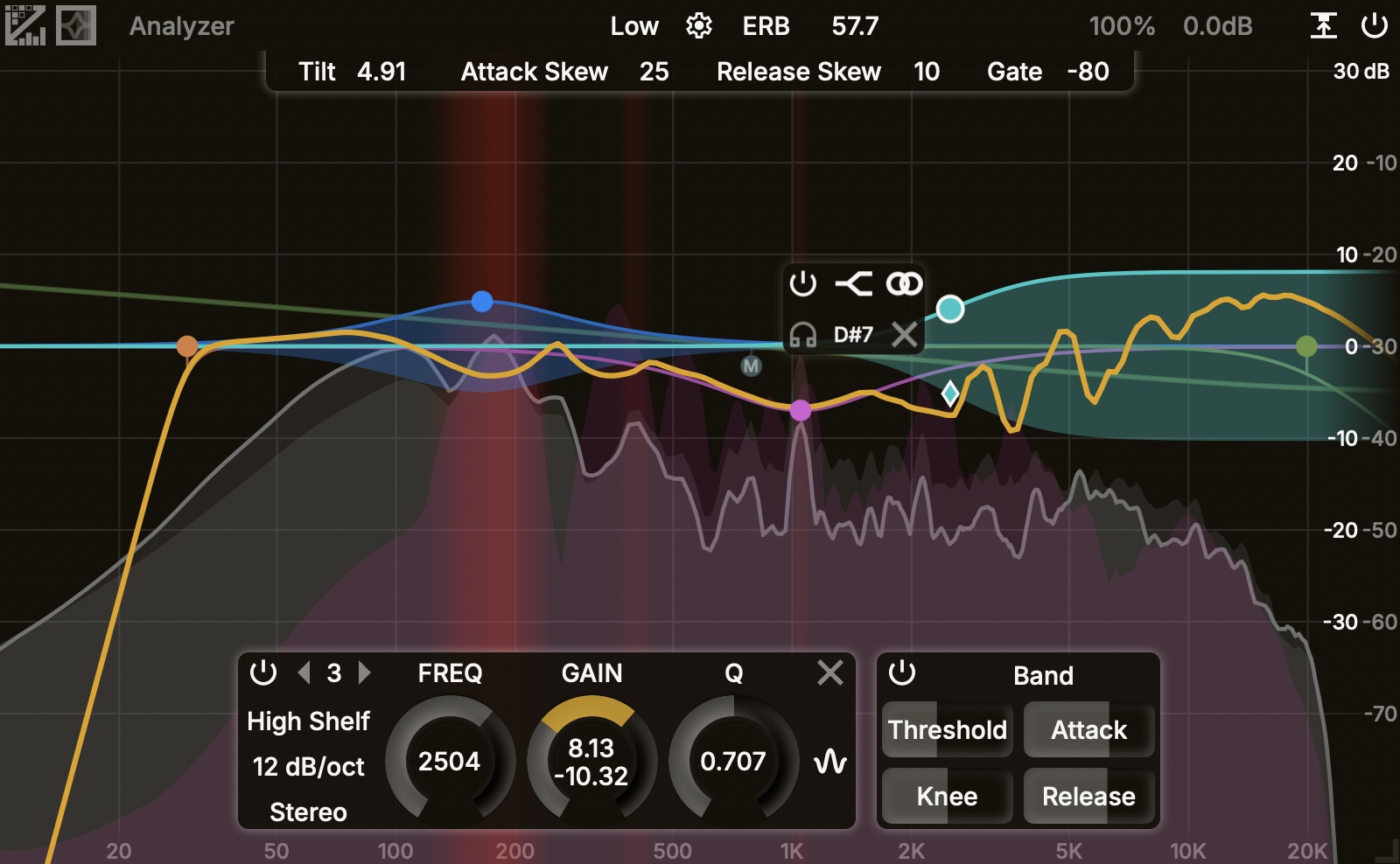
The center panel consists of a spectrum analyzer, filter response curves, filter buttons, a floating window, and a decibel scale.
Spectrum Analyzer
The spectrum analyzer shows the spectrum of the input/output/side-chain signal and collision areas (optional). You can control it via the Analyzer Setting Panel.
Filter Response Curves
The filter response curves show the magnitude response of each single band and the magnitude response of each stereo placement.
Filter Buttons
The filter buttons are attached to filter response curves. You can drag them to change filter parameters. See more info in UI Controls.
When you double-click (with/without Ctrl/Command down) on the spectrum, a band will be added at the corresponding position (with/without dynamic behavior enabled) with a filter button.
Floating Window
The floating window is attached to the filter button of the selected band. You can control some filter parameters through this window.
| Icon | Filter Type | Icon | Stereo Placement |
|---|---|---|---|
 | Peak |  | Stereo |
 | Low Shelf |  | Left |
 | Low Pass |  | Right |
 | High Shelf |  | Mid |
 | High Pass |  | Side |
 | Notch | ||
 | Band Pass | ||
 | Tilt Shelf | ||
 | Flat Tilt | ||
 | Flat Gain |
Context Menu
Invert Gain
- Click: invert gain of the selected band
Split L/R
- Click: set selected band to
Leftand add a band with same parameters but inRight
Split M/S
- Click: set selected band to
Midand add a band with same parameters but inSide
Copy
- Click: copy all selected bands’ filter parameters to the clipboard
Paste
- Click: get filter parameters from the clipboard and create those bands
Decibel Scale
You can choose the decibel scale of magnitude response curves (through a combobox at the top-right) and the decibel scale of the spectrum analyzer (through a combobox at the bottom-right).
Bottom Panel
Left Panel
- Release: bypass the band.
Band Selection
Select the current band.
Filter Type
Choose the filter type: Peak, Low Shelf, Low Pass, High Shelf, High Pass, Notch, Band Pass, Tilt Shelf, Flat Tilt, and Flat Gain.
Slope
Choose the filter slope: 6 dB/oct, 12 dB/oct, 24 dB/oct, 36 dB/oct, 48 dB/oct, 72 dB/oct, and 96 dB/oct. A higher slope will make the filter’s response curve change more steeply. Peak, Notch, and Band Pass don’t support 6 dB/oct. Flat Tilt doesn’t support slope setting.
Stereo Modes
Choose the stereo mode: Stereo, Left, Right, Mid, and Side.
FREQ
Control the frequency. The maximum value of the frequency is affected by the sample rate.
GAIN
Control the base gain and the target gain. See more info in Spectrum Dynamic.
Q
Control the quality factor.

- Press: turn on the spectrum dynamic behavior of the band

- Click: turn off the band
Right Panel
- Release: bypass the dynamic behavior. See more info in Spectrum Dynamic.

- Press: output the dynamic delta signal.
Dynamic Mode
Choose the dynamic mode. See more info in Spectrum Dynamic.
Threshold
See more info in Spectrum Dynamic.
Knee
See more info in Spectrum Dynamic.
Attack
See more info in Spectrum Dynamic.
Release
See more info in Spectrum Dynamic.
Spectrum Setting Panel
Tilt
Control the spectrum processing side-chain tilt slope. See more info in Spectrum Dynamic.
Attack Skew
Control the spectrum processing side-chain attack skew. See more info in Spectrum Dynamic.
Release Skew
Control the spectrum processing side-chain release skew. See more info in Spectrum Dynamic.
Gate
Control the spectrum gate of relative loudness. See more info in Spectrum Dynamic.
Output Setting Panel
GAIN
Control the additional output gain.
SCALE
Control the scale of all filters’ base & target gain.

- Press: turn on Static Gain Compensation
- Release: turn off Static Gain Compensation
SGC estimates the amount of compensation from the filters’ parameters. SGC is inaccurate. However, it will NOT affect the dynamic of the main-chain signal.

- Press: start to measure the integrated loudness of the input signal and the output signal
- Release: update the
Output Gainto the difference between the two loudness values
Analyzer Setting Panel
Pre/Post/Side
- Press: turn on the Pre/Post/Side analyzer
- Release: turn off the Pre/Post/Side analyzer
Decay Speed
Slope
- affects the spectrum display (not the actual signal)
0 dB/oct: no tilting, white noise displays as a horizon line3 dB/oct: pink noise displays as a horizon line4.5 dB/oct: default value, which represents perceived loudness better
Smoothing
- Control the smoothing value, larger value indicates more smooth spectrum
OCT: smooth the spectrum in octaveERB: smooth the spectrum in ERB (Equivalent Rectangular Bandwidth)

- Press: turn on the FFT freezing feature. When you hover the mouse over the analyzer for 2 seconds, the Post/Side analyzer will be frozen until you move the mouse.
FFT Analyzer Stereo Placement
| Icon | Stereo Placement |
|---|---|
| Stereo |
| Left |
| Right |
| Mid |
| Side |

- Press: turn on the collision detection.
Strength
Control the collision detection strength.
UI Setting Panel
The UI setting panel controls analyzer colors, slider operations, etc. Components will be introduced in the order from top to bottom.
Color
You can adjust the color by clicking on the left color block and change the transparency by dragging the right slider.
Text Color
Background Color
For better accessibility, please set Text/Background to colors with high contrast.
Shadow Color
Glow Color
Pre Color
Post Color
Side Color
Collision Color
Grid Color
Color Map 1
- The color map of the curves of each single filter.
Color Map 2
- The color map of the curves of Stereo/Left/Right/Mid/Side.
Control
Wheel Sensitivity
Rough: mouse-wheel sensitivity whenShiftis not pressedFine: mouse-wheel sensitivity whenShiftis pressedMenu: mouse-wheel sensitivity when adjust combobox itemsReverse: whether to reverse the direction of mouse-wheel whenShiftis pressed
Drag Sensitivity
Rough: mouse-drag sensitivity whenShiftis not pressedFine: mouse-drag sensitivity whenShiftis pressed
Rotary Slider Style
Circular: A rotary control that you move by dragging the mouse in a circular motion, like a knobHorizontal: A rotary control that you move by dragging the mouse left-to-rightVertical: A rotary control that you move by dragging the mouse up-and-downHoriz + Vert: A rotary control that you move by dragging the mouse up-and-down or left-to-rightDistance: the relative distance that the mouse has to move to drag the slider across the full extent of its range. It does not apply to the Circular style.
Slider Double Click
Return Default: when you double-click the slider, it returns to the default value; when you double-click the slider with Ctrl/Command, it opens the value editor.Open Editor: when you double-click the slider, it opens the value editor; when you double-click the slider with Ctrl/Command, it returns to the default value.
Short-cut settings for following actions:
Enter Solo
Exit Solo
Context Menu
Toggle Dynamic
Toggle Bypass
Delete Band
Other
Refresh Rate
In general, 30 Hz is enough for an equalizer plugin.
For a better analyzer display, set this to 1/n of your monitor refresh rate. For example,
- If your monitor refresh rate is 120 Hz, set it to 120 Hz, 60 Hz (1/2), or 30 (1/4) Hz. DO NOT set it to 90 Hz.
- If your monitor refresh rate is 90 Hz, set it to 90 Hz or 30 Hz (1/3). DO NOT set it to 60 Hz.
FFT Quality
Normal: normal quality for FFT analyzerHigh: high quality for FFT analyzer (consumes more CPU when UI is open)
FFT
Tilt: the extra tilting slope of the FFTSpeed: the extra decay speed of the FFT
Combobox Alignment
Left: combobox items are left-alignedCenter: combobox items are center-alignedRight: combobox items are right-aligned
Curve Thickness
Control the thickness of the curve of each band & each stereo mode.
Tooltip
Choose the tooltip language. It will take effect when the plugin window is reopened.
UI Scaling
Choose the font size mode.
Scale: the font size scales with the window size. Control the relative ratio.Static: the font size is fixed. Control the actual font size.
Curve dB Scale
Min: minimum decibel scale of magnitude response curvesDefault: default decibel scale of magnitude response curvesMax: maximum decibel scale of magnitude response curves
Window Size Fix
Choose whether to turn on Window Size Fix.
Off: plugin window size adjustment will be storedOn: plugin window size adjustment will NOT be stored, but open as it is currently every time the plugin is opened. The size can still be changed, but the changes will not be stored.
Preset Manager Panel
The preset manager panel let you manage(save/group/delete) presets.
Search Presets
Input a preset name and search it.
New Group
Input a new group name and press Enter to save it.
New Preset
Input a new preset name and press Enter to save it.

- Press: delete the selected preset group (along with all presets in the group) or the selected preset

- Press: reveal the preset folder
UI Controls
Generally, you can enable fine-adjustment with Shift and enable special adjustment with Ctrl/Command. If the direction of the mouse wheel is reversed when Shift is pressed, you can reverse it again (in the UI Setting Panel) to put it back to normal.
Sliders
- You can enable fine-adjustment with
Shiftwhen using the mouse to drag / the mouse wheel to adjust sliders. - You can use the left/right mouse button to control the first/second value when there are two values on the slider.
Filter Buttons
- You can drag a button to change the frequency/gain value.
- You can use the mouse wheel to change the Q value.
- You can use the mouse wheel +
Ctrl/Commandto change the slope. - You can enable fine-adjustment with
Shiftwhen using the mouse to drag a button. - You can drag with the left mouse button +
Ctrl/Commanddown while fixing the frequency. - You can drag with the right mouse button +
Ctrl/Commanddown while fixing the gain. - Other controls can be set via UI Setting Panel, such as enter/exit solo, toggle dynamic/bypass, etc
Combobox
- You can use the mouse wheel to change the selected item.
Window Size
- You can drag a dragger at the bottom-right corner to adjust plugin window size.
- Recommend way to set Windows Size
- Set Window Size Fix to
OFFand press the store button. - Adjust the plugin window to the size you prefer.
- Close the plugin window.
- Reopen the plugin window.
- Set Window Size Fix to
ONand press the store button. - Close the plugin window.
- Then, the plugin will be opened with the window size set in the Step 2 every time.
- Set Window Size Fix to
Spectrum Dynamic
How Spectrum Dynamic Works
Unlike ZL Equalizer 2 that applies broad filter curves based on wide-band audio triggers, ZL Spectrum Equalizer operates directly in the frequency domain using Fast Fourier Transforms (FFT). Audio is split into discrete frequency bins, allowing dynamic gain adjustments to be applied independently to each bin based on the level of the corresponding side-chain bin.
Spectrum Resolution
The Spectrum Resolution setting determines the FFT frame size used for spectral analysis and dynamic processing, establishing a direct trade-off between frequency precision and latency:
- Lower Resolutions (
Extreme LowtoLow): Offer minimal processing latency (~12 ms to ~46 ms) and quick time-domain response, making them well-suited for live tracking or transient-heavy material. - Medium Resolution (
Medium): Balances time and frequency resolution (~93 ms latency) for general mixing tasks. - Higher Resolutions (
HightoExtreme High): Provide exceptionally fine spectral resolution (~186 ms to ~743 ms latency) for exceptional low-frequency precision and surgical notch correction of narrow resonances.
In general, if you do not process the low-frequency part heavily (e.g., a high-pass below 100Hz), choose medium or lower resolutions to save processing power, reduce latency, and make dynamic processing more reactive. However, if you want heavy & precise low-frequency control, you may need to choose higher resolutions. Please watch out potential pre-ringing & CPU-spikes when you choose higher resolution.
Core Dynamic Behavior
When dynamic behavior is enabled for a band, each FFT bin covered by the filter curve continuously modulates its gain between two target values: Base Gain and Target Gain.
Threshold: The trigger level for dynamic action per bin.- When the side-chain bin level crosses above the Threshold, the main-chain bin gain transitions from Base Gain toward Target Gain at a rate determined by Attack.
- When the side-chain bin level falls below the Threshold, the main-chain bin gain recovers back toward Base Gain at a rate determined by Release.
Knee: Controls the transition curvature around the threshold.- A hard knee (low value) acts strictly: gain modulation begins only after the side-chain bin level crosses the threshold.
- A soft knee (high value) creates a gradual curve, smoothly transitioning toward the target gain as the side-chain bin level approaches the threshold for transparent, unobtrusive spectral shaping.
Note: Because processing occurs independently per FFT bin, parameters like
ThresholdandKneeoperate on individual bin levels rather than the full-band signal envelope found in conventional dynamic processors.
Dynamic Mode
You can change how the threshold is calculated by selecting different dynamic modes:
Absolute: Dynamic processing uses a static threshold.Band: Dynamic processing uses a dynamic threshold related to band side-chain loudness.Relative: Dynamic processing uses a dynamic threshold related to total side-chain loudness.
Spectrum Processing
In addition to the per-band parameters, you can adjust the following parameters that affect the overall side-chain analysis to further customize dynamic behavior:
- Smooth Type: Choose the spectrum processing side-chain smooth type.
- Smooth Value: Control the spectrum processing side-chain smooth value. A higher value makes the dynamic processing smoother on the frequency domain.
Tilt: Control the spectrum processing side-chain tilt slope.Attack Skew: Control the spectrum processing side-chain attack skew. A higher skew makes the attack faster at high frequency and slower at low frequency.Release Skew: Control the spectrum processing side-chain release skew. A higher skew makes the release faster at high frequency and slower at low frequency.Gate: Control the spectrum gate of relative loudness. UnderBandmode, if band side-chain loudness is smaller thanGate, dynamic will NOT be triggered. UnderRelativemode, if total side-chain loudness is smaller thanGate, dynamic will NOT be triggered.