Manual
About
ZL Limiter is a limiter plugin with the following key features:
- Pristine Precision: True Peak limiting and up to 32x over-sampling prevent inter-sample clipping and distortion, ensuring exceptional clarity and maximum loudness without harsh artifacts.
- Transparent Dynamic Control: Protect transient punch while smoothly shaping sustained loudness with adjustable lookahead, adaptive recovery, and flexible attack and release settings.
- Stereo Field Integrity: Preserve spatial width with customizable channel delta control.
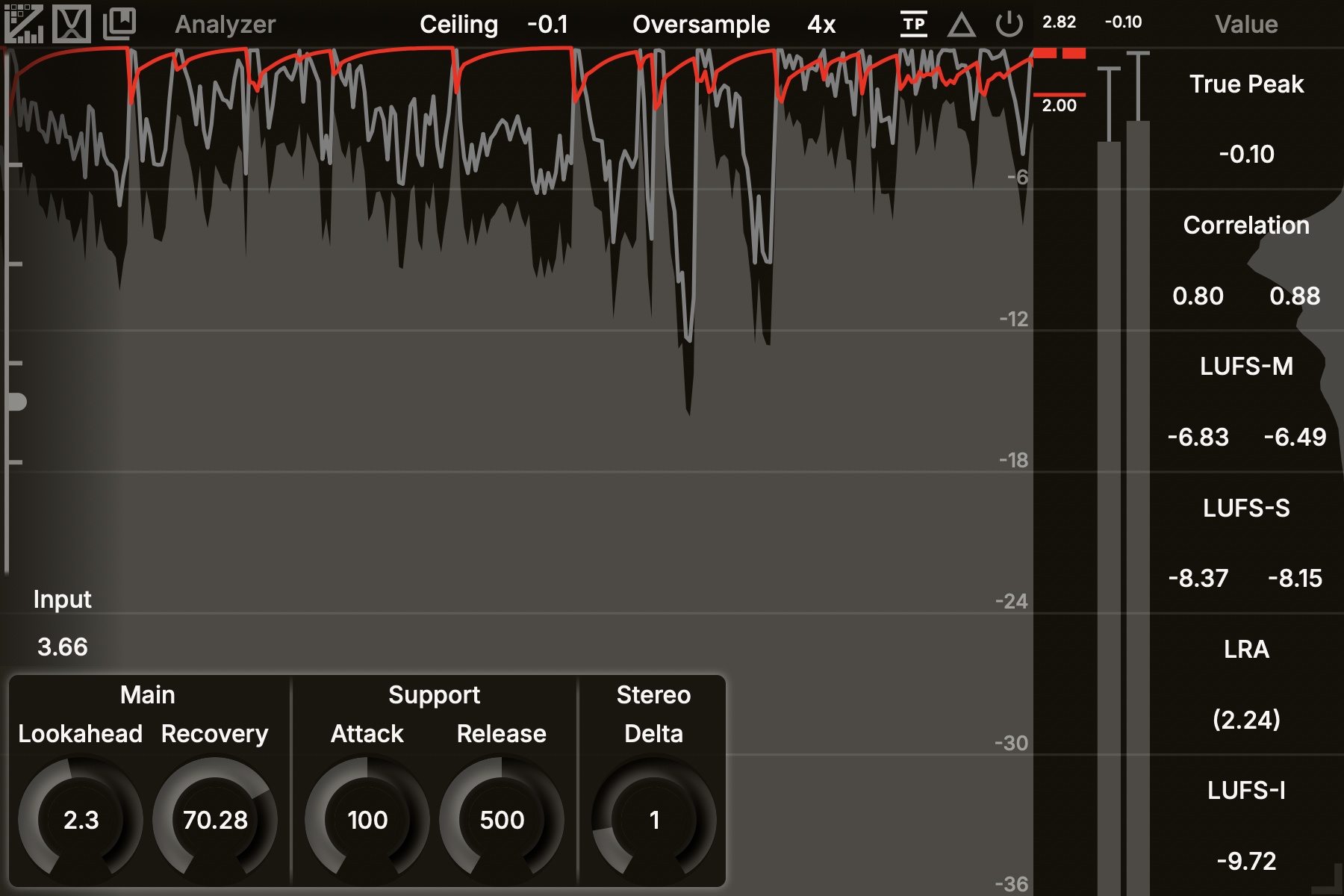
- Intuitive Workflow: A carefully designed interface featuring a real-time scrolling waveform display and comprehensive loudness metering.
Top Panel


You can open the UI Setting Panel by clicking the logo.

You can open the Preset Manager Panel by clicking the icon.
Analyzer
You can open the Analyzer Setting Panel by clicking the text.
Analyzer Setting Panel
UI Setting Panel
The UI setting panel controls analyzer colors, slider operations, etc. Components will be introduced in the order from top to bottom.
Color
You can adjust the color by clicking on the left color block and change the transparency by dragging the right slider.
Text Color
Background Color
For better accessibility, please set Text/Background to colors with high contrast.
Shadow Color
Glow Color
Pre Color
Post Color
Reduction Color
Grid Color
**`Color Map 1
**`Color Map 2
Control
Wheel Sensitivity
Rough: mouse-wheel sensitivity whenShiftis not pressedFine: mouse-wheel sensitivity whenShiftis pressedMenu: mouse-wheel sensitivity when adjust combobox itemsReverse: whether to reverse the direction of mouse-wheel whenShiftis pressed
Slider Sensitivity
Rough: mouse-drag sensitivity whenShiftis not pressedFine: mouse-drag sensitivity whenShiftis pressed
Rotary Slider Style
Circular: A rotary control that you move by dragging the mouse in a circular motion, like a knobHorizontal: A rotary control that you move by dragging the mouse left-to-rightVertical: A rotary control that you move by dragging the mouse up-and-downHoriz + Vert: A rotary control that you move by dragging the mouse up-and-down or left-to-rightDistance: the relative distance that the mouse has to move to drag the slider across the full extent of its range. It does not apply to the Circular style.
Slider Double Click
Return Default: when you double-click the slider, it returns to the default value; when you double-click the slider with Ctrl/Command, it opens the value editor.Open Editor: when you double-click the slider, it opens the value editor; when you double-click the slider with Ctrl/Command, it returns to the default value.
Other
Refresh Rate
Set this to 1/n of your monitor refresh rate. For example,
- If your monitor refresh rate is 120 Hz, set it to 120 Hz, 60 Hz (1/2), or 30 (1/4) Hz. DO NOT set it to 90 Hz.
- If your monitor refresh rate is 90 Hz, set it to 90 Hz or 30 Hz (1/3). DO NOT set it to 60 Hz.
Combobox Alignment
Left: combobox items are left-alignedCenter: combobox items are center-alignedRight: combobox items are right-aligned
Curve Thickness
Control the thickness of the curve of magnitude.
Tooltip
Choose the tooltip language. It will take effect when the plugin window is reopened.
UI Scaling
Choose the font size mode.
Scale: the font size scales with the window size. Control the relative ratio.Static: the font size is fixed. Control the actual font size.
Window Size Fix
Choose whether to turn on Window Size Fix.
Off: plugin window size adjustment will be storedOn: plugin window size adjustment will NOT be stored, but open as it is currently every time the plugin is opened. The size can still be changed, but the changes will not be stored.
Preset Manager Panel
The preset manager panel let you manage(save/group/delete) presets.
Search Presets
Input a preset name and search it.
New Group
Input a new group name and press Enter to save it.
New Preset
Input a new preset name and press Enter to save it.

- Press: delete the selected preset group (along with all presets in the group) or the selected preset

- Press: reveal the preset folder
UI Controls
Generally, you can enable fine-adjustment with Shift and enable special adjustment with Ctrl/Command. If the direction of the mouse wheel is reversed when Shift is pressed, you can reverse it again (in the UI Setting Panel) to put it back to normal.
Sliders
- You can enable fine-adjustment with
Shiftwhen using the mouse to drag / the mouse wheel to adjust sliders. - You can use the left/right mouse button to control the first/second value when there are two values on the slider.
Combobox
- You can use the mouse wheel to change the selected item.
Window Size
- You can drag a dragger at the bottom-right corner to adjust plugin window size.
- Recommend way to set Windows Size
- Set Window Size Fix to
OFFand press the store button. - Adjust the plugin window to the size you prefer.
- Close the plugin window.
- Reopen the plugin window.
- Set Window Size Fix to
ONand press the store button. - Close the plugin window.
- Then, the plugin will be opened with the window size set in the Step 2 every time.
- Set Window Size Fix to